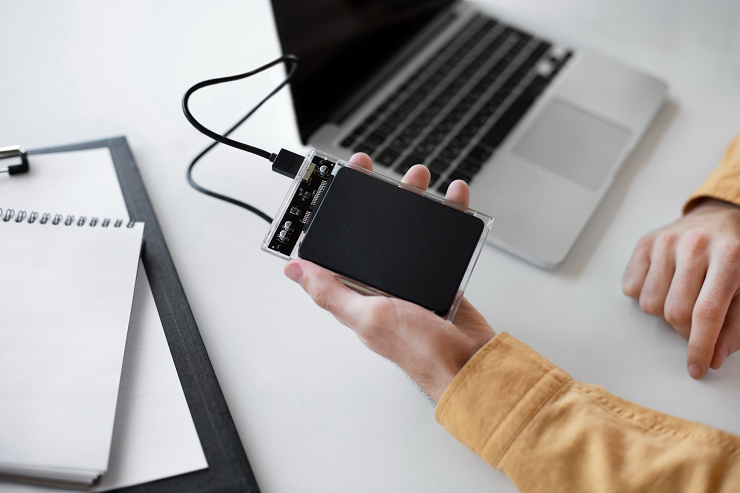


When Windows starts crashing or showing errors, most people restart their system again and again. That hardly helps when a bad driver or a program keeps loading at every startup.
Windows includes a built-in diagnostic mode for these situations. However, most users never open it because the steps aren’t obvious. Some issues remain hidden after the basics, and expert computer tech support can take over when your guesses stop working.
Safe Mode is generally safe to use, and changes are never permanent. Knowing when to use it can save time and prevent unnecessary reinstalls.
Normal startup will load every driver, service and startup program on your computer. Safe Mode loads only the core Windows components, giving you a clean place to find issues faster.
There are a couple of things that change when Windows start in Safe Mode:
Such limitations make Safe Mode effective for testing. If you are searching for “speed up my Windows PC,” it’s important to understand that Safe Mode is mainly for diagnosis, not regular use, because it turns off most features you rely on.
Safe Mode helps most with these situations.
A computer that crashes at the sign-in screen or loops through restarts often has a driver or an update issue. Safe Mode can skip most of those items, so Windows may load when it can’t start normally.
If you can reach the desktop, you can remove the issue entirely. It also lets you save important files before trying major fixes.
A new graphics driver or recent program can cause random crashes. Safe Mode enables you to remove or roll back the issue item without loading it in the background.
Removing a single bad item is much faster than reinstalling Windows. Restart your system normally after each change to see whether the issue is entirely gone.
You can easily open Windows in Safe Mode from the sign-in screen or the Settings app. This approach depends on whether or not Windows is still loading.
Almost every route will end at the same Startup Settings menu. On Windows 11, the Recovery page under Settings is the simplest route if the computer keeps starting.
Some malware downloads along with Windows and will evade security products under normal circumstances. Safe Mode prevents some of those threats from becoming a serious problem, making them easier to see and remove.
Multiple threats won’t show up in Safe Mode. Clean scan results give you more confidence than results from normal use.
A startup program is a likely cause of a slow PC when it starts up in Normal mode. Comparing speeds in both modes will point you to the source.
This comparison will definitely help you determine if the problem is software or hardware. If Safe Mode is also slow, the issue could be the drive or memory, and you’ll need a technician.

Safe Mode is a tool for finding problems, not a place to work. Use it for a short test, make one change, and restart normally to check the result.
The team at Nerd Alert helps people recover unstable Windows computers, remove malware, and fix driver errors. We explain every step in plain language, so you always know what was fixed and why.
Contact us today to get expert help with your Windows computer.
HOW DO I LEAVE SAFE MODE?
Restart the computer normally. If it keeps returning to Safe Mode, open System Configuration and clear the Safe Boot checkbox.
IS SAFE MODE THE SAME AS A CLEAN BOOT?
No. Safe Mode limits Windows to basic drivers, while a clean boot runs a normal session with third-party startup items turned off.
CAN I USE SAFE MODE TO RECOVER MY FILES?
Yes. Your files stay in place so that you can copy them to an external drive before repairs.

I’m a Nerd and very proud of it! I love to write about anything Tech related. Subscribe to our blog for helpful tips, tricks & news.