

Printers still have a place in homes, offices, and businesses. A printer that prints blank pages is nothing like a disruption to the workflow. The documents seem to be printed as usual, paper runs through the machine, but the result is no text or pictures.
The printing of a blank page is typically an indication of a fixable issue rather than a serious hardware problem. A lot of the time, careful troubleshooting can be used, and normal printing resumes. There are a few general reasons behind this irritating issue, and each can be fixed practically, allowing a steady performance.
This is because knowing the best printer troubleshooting tips enables users to identify the cause of blank pages and resume normal, reliable printing without unnecessary stress.
Blank pages do not occur regularly. The small symptoms tend to emerge prior to the problem becoming common. Owing to these early warnings, downtime can be avoided.
The common warning signs are:
Troubleshooting at an early stage will save time and avoid unnecessary cartridge replacements.
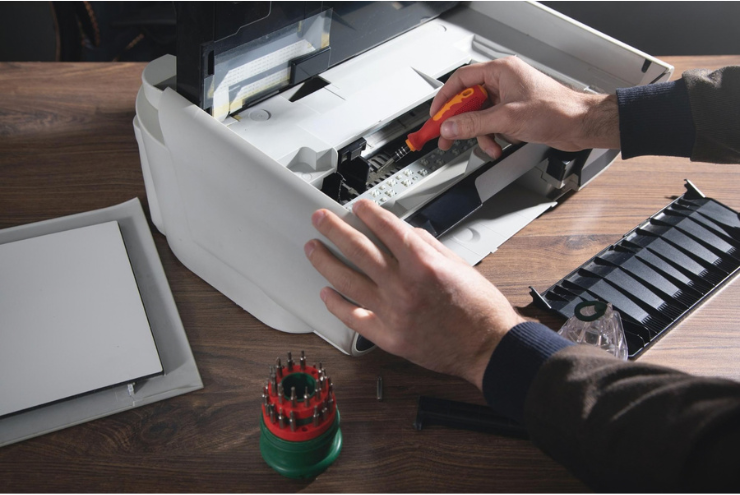
Blank pages may be printed due to an ink issue, incorrect settings, or a clogged part. Systematic troubleshooting helps isolate the cause and restore normal printing.
One of the most frequent reasons why printers are making blank pages is empty or low cartridges. To print text and images, printers need sufficient ink or toner to print them on paper.
This is how early detection can help prevent wastage of paper and failed printing jobs:
Carridge monitoring eliminates blank prints. Regularly monitoring printer ink levels and replacing cartridges when they run low ensures printers produce clear, consistent output.
Jammed printheads can block ink flow, resulting in blank or partially printed pages. The nozzles often build up ink residue and dried ink when not used.
Cleaning cycles restore ink flow and improve print clarity:
Printhead maintenance ensures the flow of ink through the nozzles. Periodic cleaning can be used to keep the prints sharp and avoid blank page problems when in regular use.
Wrong print specifications occasionally end up making the printers produce blank pages. Normal printing can be interrupted by print settings that do not print ink or have the wrong page format. Users might think the printer has broken down; however, connection problems, such as the printer not connecting, can also disrupt the flow of data needed to print documents correctly.
The unwanted troubleshooting can be avoided through a close examination of settings:
Good print settings help to have correct document processing. It can be used by reviewing layout and print options to avoid configuration errors that commonly result in blank pages.
Obsolete or damaged drivers interfere with the interaction between the printer and the computer. Driver conflicts can leave out unfinished or blank print output.
To have an up-to-date driver is a sure way to have a reliable printing performance:
Up-to-date drivers and compatibility instructions may be found in the manufacturer’s documentation or professional printer support materials, to fix the printing errors that keep happening.
Poorly fixed cartridges prevent ink from transferring to the paper. Blank page printing is likely to happen when protective seals are left on cartridges or left loose during installation.
Ink flow is restored to normal by correct installation:
Proper placement of cartridges ensures contact with the internal printer components properly. A secure installation will allow regular ink delivery and prevent blank pages.
Blocked printheads or uneven ink flow are indicated through nozzle tests. Diagnostic pages give a user an opportunity to diagnose certain colors or channels that do not print.
A test will identify mechanical or ink spreading problems:
Diagnostic testing provides insight into the performance of the printers. Early detection of clogged nozzles allows them to be cleaned carefully, resuming normal print operation.

The glitches that appear in temporary software interfere with the print commands. Rebooting the printer and the computer clears memory errors and restores communication channels.
Sometimes plain resets are quite successful in fixing printing problems that have no explanation:
Restarting devices would recover system processes and reestablish print services. Rebooting of equipments will usually resolve minor technical issues causing blank pages.
Issues related to the printer are usually complex but can be solved through a set process of troubleshooting. Regular maintenance, proper settings, and proper cartridge maintenance will assist the printers to work well over time. Trustworthy printing keeps productivity on track, and professional advice significantly simplifies troubleshooting.
At Nerd Alert, we specialize in practical tech solutions that keep devices working smoothly. Contact us today and let our experts quickly restore your printer to peak performance!
Ink release during printing may be inhibited by protective cartridge seals, incompatible cartridges, firmware glitches, or wrong recognition of printer firmware.
Incompatible application exports, corrupted documents, or unsupported file formats occasionally transmit partial data and show up as blank pages being printed.
Prolonged immobility allows settling of microscopic ink spots, which reduces internal circulation and affects print consistency during initial print jobs.

I’m a Nerd and very proud of it! I love to write about anything Tech related. Subscribe to our blog for helpful tips, tricks & news.