
A small business Wi-Fi network carries card payments, customer data, email and shared files over one signal. So a single weak point can expose them all. Anyone who gets onto that network would often try to read the network traffic or reach the devices behind it.
Smaller offices hardly have in-house IT teams. So the router often maintains its factory settings. Many even connect cameras and speakers to the same network, and smart home devices like these often ship with weak passwords that give attackers an easy way in.
Most issues on small business networks start with simple gaps, including shared passwords or outdated routers. Closing those gaps takes time, and fixing them sooner costs far less than recovering from a breach.
Attackers often look for easy targets, and small business networks often have fewer protections than larger ones. Most break-ins exploit a short list of known weaknesses that owners can fix without special tools.
Attackers often get in through one of these weaknesses:
Business owners operating from home face the same risks since work laptops and family devices often share a single router. This is where home WiFi help and setup from a qualified technician can help by separating them into different networks. This keeps a family tablet from becoming a breach pathway to client files.
Here are a few steps to protect your network without a dedicated IT department or expensive equipment.
Encryption often rearranges data as it travels between your devices and your router. Also choose WPA3 if your router has an option for it, or WPA2 if it doesn’t. Pair it with a lengthier password that only your staff know.
A stronger password often prevents casual guesswork and keeps nearby strangers off your network. Also change it whenever a team member leaves your business, or a work device goes missing.
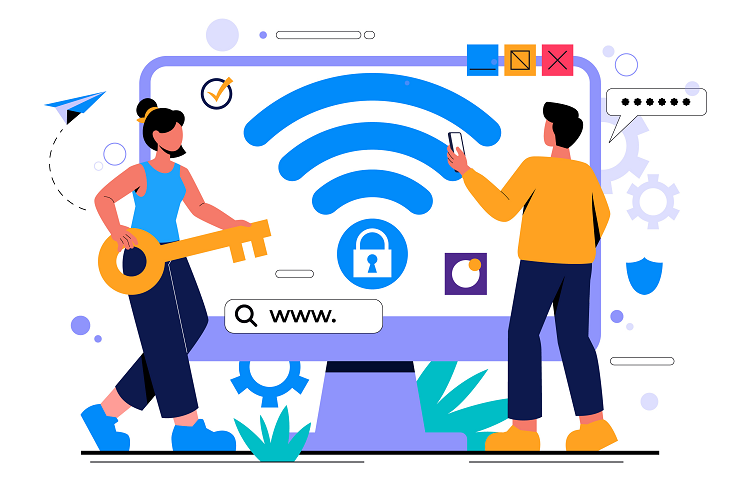
A guest network gives visitors internet access without letting them see your business devices. Add your own password so that customers and vendors cannot access your payment systems or files.
A different network also safeguards speed. When a guest streams video or starts 8K gaming on the guest network, the heavy use stays away from your payment terminals and shared files.
Router manufacturers often release firmware updates to close security gaps that attackers already know about. Check for updates on a set day every month and turn on automatic updates if your router allows it.
Updates also fix stability bugs that slow down the network. So if your WiFi keeps dropping during the workday, check for outdated firmware first.
The router admin page controls every other setting, so an attacker who gets in there controls your network. Protect that page with its own strong login and as few open doors as possible.
A locked router gives attackers one less way in. It also prevents accidental changes or curious employees from altering your security settings.
Review the connected devices list often to spot anything unfamiliar. An older router also lacks newer security features, so plan to replace it on a schedule.
When you replace an old router, WiFi 7 vs. WiFi 6 comes down to speed and capacity, since WiFi 7 handles more devices at once. Either way, confirm that the router supports WPA3.

A secure network protects the business you built and the customers who trust you. Good habits are easy to keep once the setup is right, and a professional check can confirm that nothing was missed. Even a small network is worth the same care you give your cash register and your files.
The team at Nerd Alert helps small business owners secure their routers, set up guest networks, and fix connection problems. We explain every step in plain language, so you always know what changed and why.
Contact Nerd Alert today for expert help with your business Wi-Fi and to keep your customer data safe.
DO I NEED A BUSINESS ROUTER INSTEAD OF A HOME ROUTER?
A home router can work for a very small office if it gets updates and supports WPA3. Larger teams need business routers with better controls.
WHAT SHOULD I DO IF SOMEONE IS USING MY WI-FI?
Change the Wi-Fi password, restart the router, and remove unknown devices from the connected list. Then check the router for settings you did not change.
SHOULD I HIDE MY WI-FI NETWORK NAME?
Hiding the name adds little protection because common tools can still find it. A strong password and WPA3 matter far more, so focus on those first.

I’m a Nerd and very proud of it! I love to write about anything Tech related. Subscribe to our blog for helpful tips, tricks & news.