
Issues with wireless printing stall work and create unwanted stress at home or in offices. A printer that fails to connect appears confusing, mainly when everything else works fine. Issues over connection happen due to small setting errors, outdated software, or network conflicts. Proper guidance can help save time preventing any frustration.
In this post today, we are going to explain the practical solutions that work using simple steps that are easy to follow for all. Each fix aim on clarity, stability, or long-term results for effortless home printer setup.
Printer connectivity problems rarely happen without a reason. Understanding the root cause helps fix the issue faster and avoids repeated failures later.
Duplicate IP addresses confuse the network, preventing the printer from being recognized or staying connected consistently.
Simple checks solve many printer connection problems without advanced steps. These quick actions help confirm basic network stability before moving forward. Here is what you need to do:
Quick checks save time and prevent unnecessary changes. Consistent results come from strong basics and reliable guidance through home Wi-Fi support & troubleshooting services.
Reliable reconnection requires a structured approach rather than random attempts. Each step below builds stability and removes hidden issues that block successful wireless printing.
Network reset clears stored WiFi data and removes outdated connections that block fresh setup attempts. This step restores default communication settings and prepares the printer for a clean connection. Many recurring wireless problems fall under basic printer troubleshooting, since old network profiles often conflict with new routers and updated security protocols.
What to Do
A successful reset creates a clean starting point. Fresh configuration avoids hidden conflicts and improves long-term wireless performance significantly.
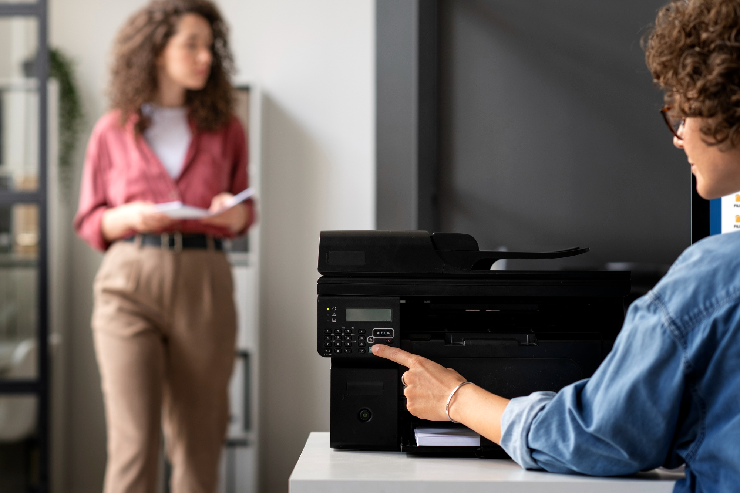
Router memory issues or stalled connections often disrupt printer communication. Restarting networking equipment refreshes connections and resolves temporary network congestion. Stable router performance supports reliable device discovery during printer setup and daily usage.
What to Do
Clean network restarts improve device communication. Strong router health supports smoother printer reconnection and fewer dropouts later.
Many printers only support specific frequency ranges, which makes correct WiFi band selection extremely important. Selecting the proper band avoids connection loops and compatibility errors. This situation highlights the importance of professional tech support, as trained experts quickly identify band conflicts that are commonly overlooked during home setup attempts.
What to Do
Correct band selection removes compatibility barriers. Stable frequency matching keeps the printer connected consistently without random disconnections.
Official setup tools guide printers through proper authentication and driver installation. These programs handle background configurations that manual methods often miss. Software-based setup increases success rates significantly.
What to Do
Manufacturer tools simplify complex steps. Guided setup reduces errors and ensures correct driver and network alignment.
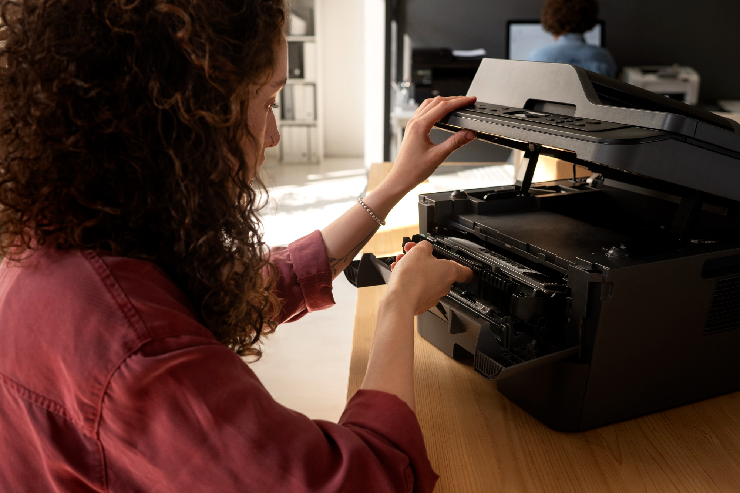
Firmware updates fix bugs, enhance compatibility, and improve overall network stability for wireless printers. Manufacturers release updates to support newer routers and security standards. This process reflects the importance of regular tech maintenance, since outdated firmware often causes recurring WiFi failures and inconsistent printer performance over time.
What to Do
Modern firmware strengthens reliability. Updated software keeps wireless communication smooth and secure.
Dynamic IP changes can confuse computers and printers over time. Static IP assignment keeps network identification consistent. This step benefits shared or office printers, especially.
What to Do
Consistent IP addressing improves stability. Fixed identification prevents printers from disappearing after network restarts.
Driver conflicts stop computers from recognizing connected printers. Fresh driver installation removes corruption and outdated files. Clean drivers restore proper communication channels.
What to Do
Driver refresh restores communication. Updated drivers ensure accurate printing commands and stable device detection.

Some issues extend beyond basic troubleshooting. Knowing when professional help or replacement makes sense saves time and frustration.
Repair expenses exceed the value of replacement, making a newer printer more cost-effective.
Printer WiFi issues feel overwhelming, but clear steps bring reliable results. Stable connections depend on proper setup, updated software, and correct network settings.
At Nerd Alert, we offer expert solutions for printer and network challenges with a focus on long-term reliability. Support from professionals ensures smooth printing without guesswork. Regain control of wireless printing today and contact us to get expert help now.
CAN WIFI EXTENDERS AFFECT PRINTER CONNECTIVITY?
Yes, extenders may isolate devices, preventing printers from communicating properly with computers on main networks.
DOES CHANGING THE ROUTER PASSWORD DISCONNECT PRINTERS?
Changing router passwords requires updating printer settings; otherwise, authentication fails, and wireless printing stops completely.
CAN POWER OUTAGES CAUSE PRINTER WIFI ISSUES?
Power outages reset network configurations, causing printers to lose saved credentials and fail to reconnect automatically.

I’m a Nerd and very proud of it! I love to write about anything Tech related. Subscribe to our blog for helpful tips, tricks & news.